


Ability Drive

Ability Drive
Eye Tracking Control System for Power Wheelchairs
Tolt Technologies
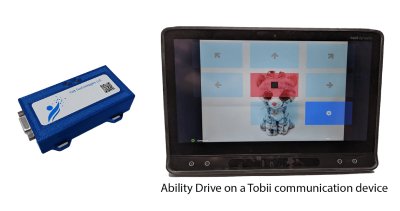
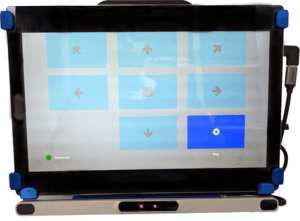
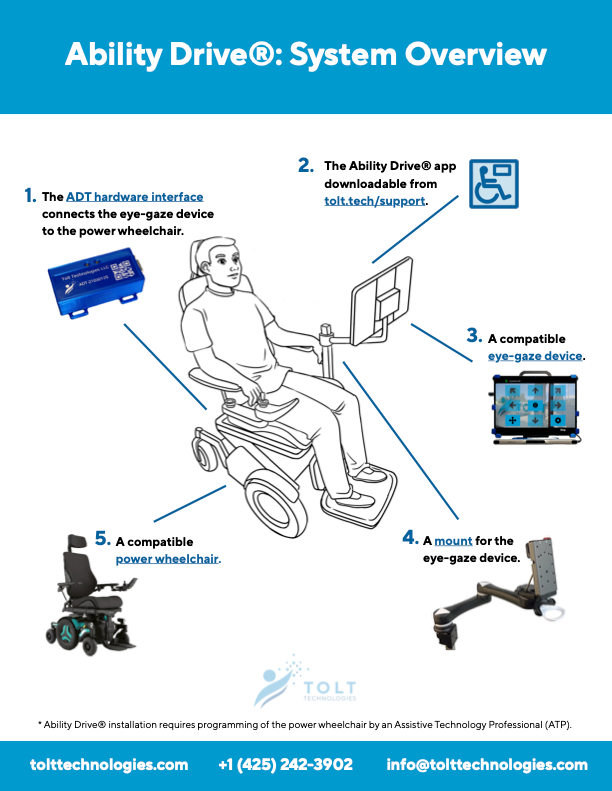
Is a solution as an alternative wheelchair drive control system that combines proprietary software, a modified tablet computer and eye tracking camera to create a “virtual joystick.”
Although Ability Drive was originally developed to help patients fighting ALS, there is potential for it to help people with other diseases and medical conditions ranging from spinal cord injuries to Parkinson’s disease, cerebral palsy, and a host of others.

Ease of Use
Simple enough that most people even those not familiar with using a tablet can start driving their chair within 15 seconds.

Compatibility
Integrates easily with most eye controlled communication devices, allowing users of augmentative communication tools to utilize their existing tablet for drive controls.

Independence
Allows users who have lost functionality of the head, hands, arms and legs to continue driving their power wheelchair.

Integrated Technology Solution
Made with security in mind, we constantly audit Visual Composer to meet the highest security standards.
Getting Started
Think Ability Drive may be right for you?
We’ll help you and walk you through a free demonstration.
Everything You Need to Know
About Ability Drive?
Ability Drive® is supported on the following eye-gaze devices:
- Accessibility Services Inc. AT-12 with Tobii
- Control Bionics Trilogy with Alea, Alea NXT, or Hiru
- Eyegaze Edge with Encore or Prime
- EyeTech EyeOn Elite
- Forbes WinSlate with Alea, Alea NXT, or Hiru
- Jabbla Tellus i6
- PRC Accent 1400 with Look2
- Qinera ComuniQa Eye with Tobii
- RM Speech Inspire and Inspire XL with Hiru
- SmartBox Grid Pad 12 or 15 with Alea or Lumin-i
- SmartBox Grid Pad 13 or 16 with Alea NXT, GazeFirst, or Lumin-i
- Tobii I-Series TD I-13 or TD I-16
- Tolt Technologies A13J with Alea NXT or Tobii
Does not work outdoors due to sunlight interference.
Ability Drive® is not supported on untested devices such as consumer tablets. Use on an unapproved device is unwarranted and unsupported. We are aware of safety issues that can arise when using unapproved devices and we strongly discourage the sale or reuse of Ability Drive® in these circumstances. Here is why.
Devices NOT supported:
- Skyle for Windows or iPad
- Tobii TD Pilot
Devices with discontinued support:
- Tobii i-Series TD I-12+ or TD I-15+
- Any device with Irisbond Duo eye-tracker
- SmartBox GridPad 12/15 with Tobii eye-tracker
- Talk To Me Zuvo 12 with Alea or Hiru
Compatible Power Wheelchairs
Ability Drive® is supported on the following Group 3 Power Wheelchairs:
R-net:
(Required components: Omni 2 Specialty Control Interface)
- Amylior
- Invacare Rovi
- Permobil
- Sunrise
Q-Logic 3:
(Required components: Q-Logic 3 Enhanced Display)
- Quantum
- Edge 2.0 and newer
LiNX:
(Required components: LiNX DLX-IN500 Input Module, LiNX REM400 or REM500 Display, and LiNX Bus Cable)
- Invacare
- TDX SP2
The following power wheelchairs are NOT supported:

Do I need IOM or SCIM / 9-pin?
On a chair with R-NET electronics (Permobil, Sunrise, ..etc.) you don’t need an IOM, if the chair has an Omni OR Omni2.
On a Quantum chair you don’t need a SCIM Module, if the chair has an enhanced display.
Which wheelchairs does Ability Drive work with?
We haven’t met an RNet system we don’t work with. This covers Permobil, Sunrise, and Invacare Rovi.
Quantum QLogic-2 (before 2017) systems have some safety issues and are not supported. QLogic-3 (Quantum Edge 2.0 and later) has no issues.
Invacare models other than Rovi have not been tested.
Wheelchair Configuration
R-Net OMNI 2 configuration
Here is a helpful video on configuring a Permobil OMNI 2.
Configuring a Quantum Wheelchair
Video guide of how to configure a Quantum Q3 with an enhanced display.
How to Enable Piano Mode for Ability Drive®
The Piano Mode allows Ability Drive® to play piano notes instead of driving, and it can be used without an ADT
Step 1: Install Ability Drive
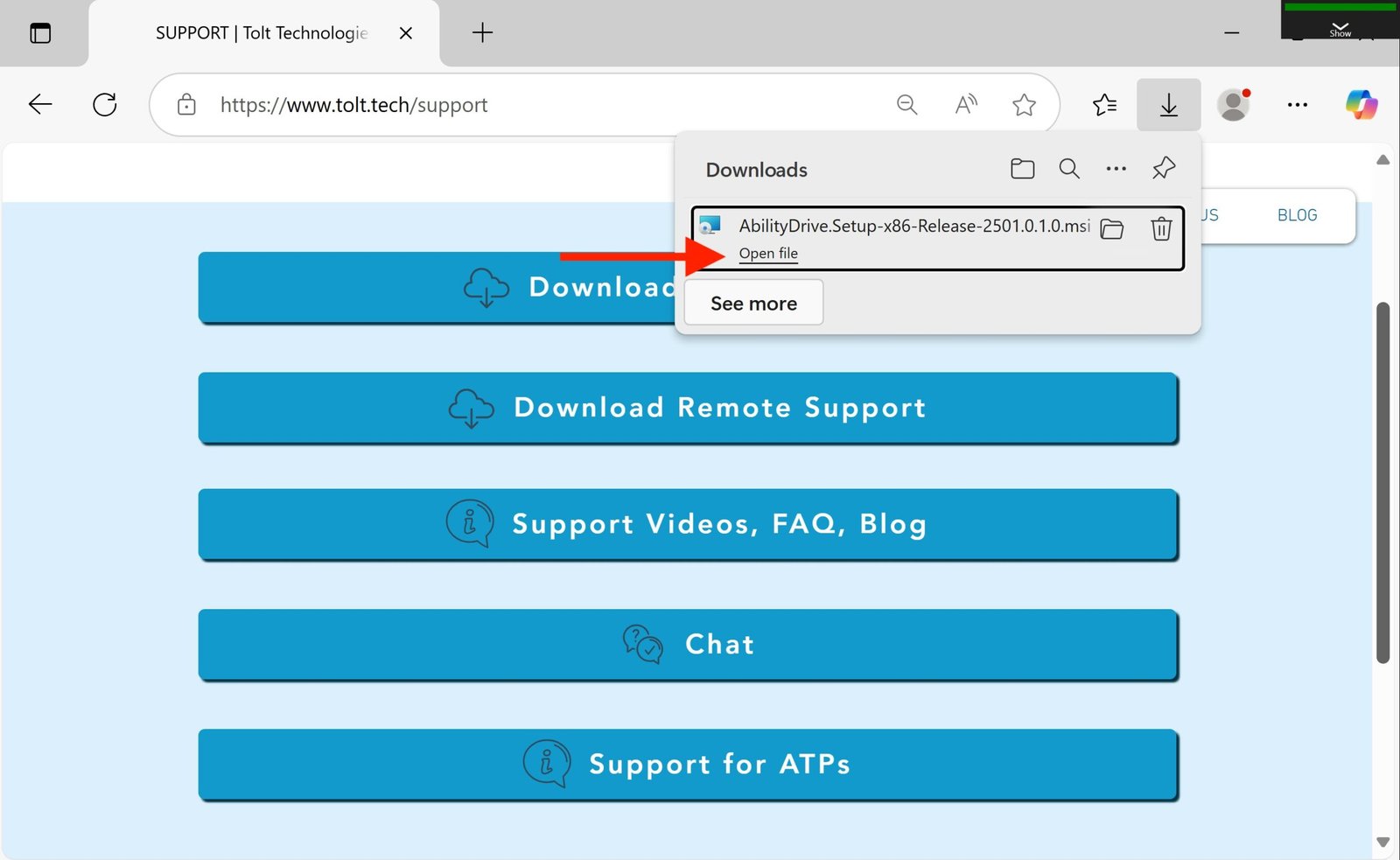
Install Ability Drive onto the eye-gaze device by visiting our website, https://www.tolt.
When the download completes, click “Open file”.
Step 2: Open Properties
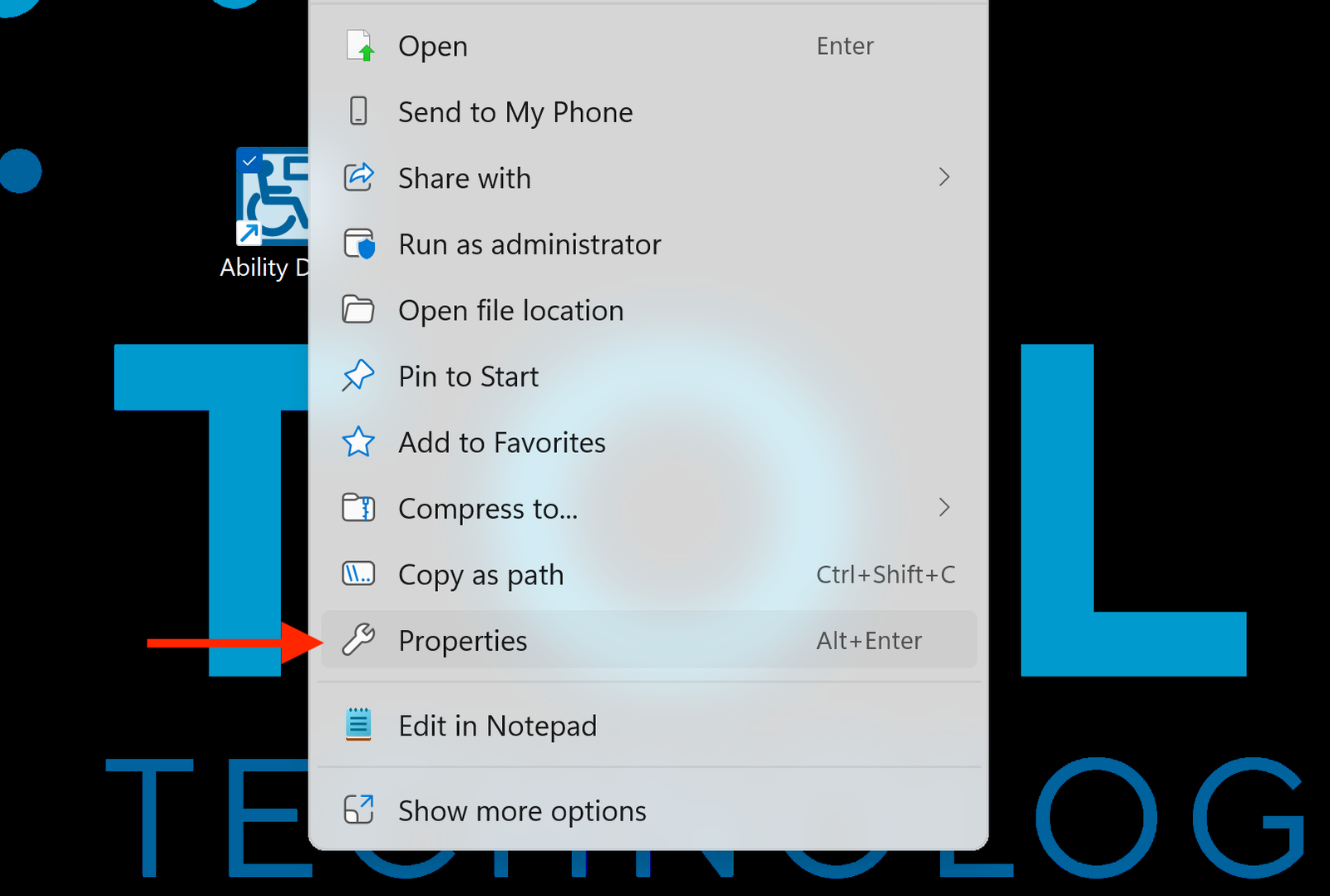
On the Windows desktop, right-click the Ability Drive icon and select Properties.
Step 3: Add Piano Mode
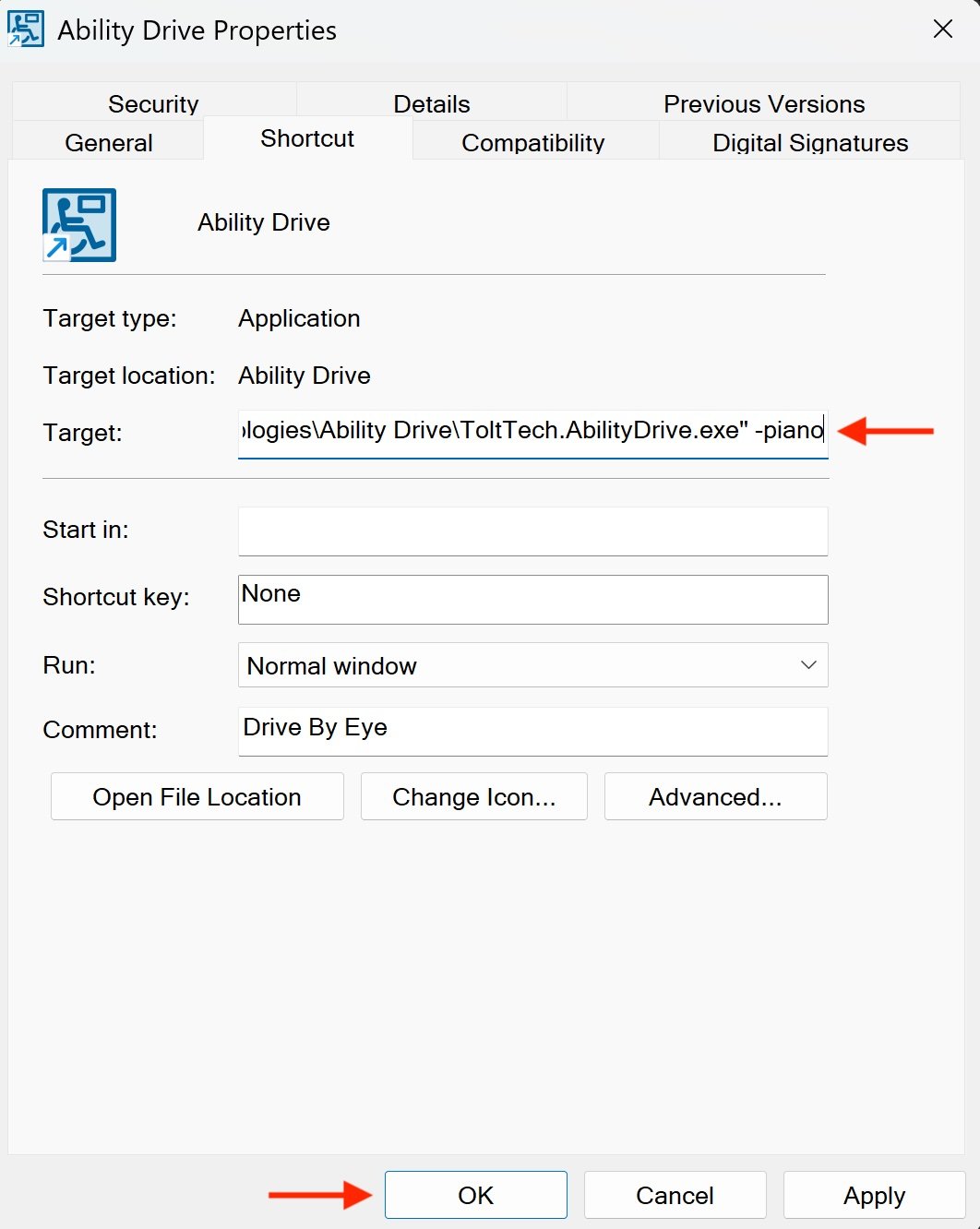
Next, in the Shortcut tab, at the end of the target field, add a space, a hyphen, and the word piano. In summary, add ” –piano” to the end of the target. Remember to add a space before the hyphen. Click pply and then Ok.
Step 4: Launch the app
Return to the desktop and open Ability Drive. The drive arrows will now play piano notes.